With the reinvention of Area 220 [see this post] as a team space on the 2nd Floor of Meyer Library, it's high time we presented some collaborative web tools for use in conjunction with the space [in addition to those mind-blowing whiteboard walls]. And with that, I will also introduce our new blog contributor and Team Leader, Peter, giving us the inside scoop on Drop Box.
Working Together on Google Docs
Google Docs offers everything you'd need for a basic Office suite. The catch is it's all online, so you don't have to empty your wallet for a new copy of Microsoft Word [although Open Office is a fantastic open-source alternative]. You can create word documents, spreadsheet, Powerpoints, and polls that populate a spreadsheet and output graphs. Files can be saved as txt, rtf, pdf, doc, html, and odt, as well as directly printed from Google Docs.
Recently added features include the ability to upload files [limit of 1 GB for all uploaded files] to Google Docs "as is" in addition to converting your documents to the Google Doc format and the ability to organize files into folders.
Oh, and did I mention that it autosaves like you wish you did? That autosave on Google Docs is also unlikely to get lost on your hard drive, and if you have so many Google Docs you can't keep track of them all, Google's search algorithm will find it for you.
That's just scratching the surface of Google Docs. You can share your documents or even entire Google folders with other people simply by emailing them [presuming they have a Gmail account]. There are permissions controlling who can edit or simply view the document, and multiple people can have the same document open and edit it simultaneously as well as watch it update with other peoples' edits. Once in a while you'll "lose" the update battle, but the algorithm is pretty good at preserving everybody's additions. On top of simultaneous editing capabilities, there is also a chat box in the upper right corner by which you can Gchat to one another should you not be in the same room as your collaborators, and when you're the only one looking at the document, you can send them a message under the Share menu.
Google Wave
The lovechild of Google Docs, Gchat, and Gmail, Google Wave is the next generation of Google's suite of collaborative tools. It is currently an invitational-only beta. There are two panes to worry about: the middle one which tracks all your Waves, and the rightmost one which tracks the wave you are currently looking at. The leftmost pane will remind you most of Gmail, and indeed, each wave is like a threaded conversation, only instead of sitting on your email and hitting reply every few minutes, you are part of an IM chat room that is always open. Google Wave is most useful, I think, when at least two people are on so their ideas can interact in real-time, and so I like to call the IMs "thought bubbles."
One of the nice features of Google Wave is "playback," which allows you to recover information or watch the progress of ideas, much like the revision history of Google Docs, but in a slightly more intuitive fashion. The IM chatroom-style organization of Google Docs is also nice because you can see who contributed what and when, so that if you have a question about a revision you know exactly who to ask [or blame]. A nice way to organize a Google Wave is to figure out what you want to produce, make one main "thought bubble" dedicated to it, and chat and edit the main bubble as you go. I've used Google Wave to organize people to plan events and produce documents when our schedules or the weather doesn't allow us to meet in person.
I will remind you that it is in beta, so there are a few bugs and features wanting, but you can offer your feedback in the upper right hand corner. Interested? Find a friend with Google Wave and ask them to invite you!
Sunday, February 28, 2010


Thursday, January 14, 2010
Coupa Café now at Meyer

A fancy automagic espresso machine has made its first appearance inside of Meyer 1st Floor. You can now get nearly unlimited cups of your favorite piping hot espresso, decaf espresso, americano, cappuchino, hot chocolate, café mocha, or café latte. Coupa Café certifies that it is full of organic and free-trade goodness as well.

All you have to do to get started is dig in your wallet to find a card with certain symbols on it that say things like "VISA", "MC", "Discover", or "AMEX." Just one swipe, and PRESTO! Coffee comes to the rescue, whether you need a pick-me-up after class or it's 4 in the morning. Further instructions are posted on the machine. And just in case you make a big mess, the machine is conveniently located right next to the bathrooms. In fact, the nook in the wall almost makes it seem like it was always meant to be there. Actually, wait, didn't there used to be a water fountain there?

Machine out of caffeine juice or ate your credit card? Call 650-200-3113 for problems.
Let us know what you think about the new expresso machine!
Wednesday, September 16, 2009
New School Year, New Equipment
Happy New Academic Year at Stanford! Many of our faithful readers may already be aware of the impressive inventory of equipment available for checkout at the Meyer Tech Desk. We've gone ahead and added some additional gadgets to our collection just in time for the new year. Check them out!

Dell m409wx DLP Projectors are always popular for presentations and movie/gaming events. Accepts video input from VGA, HDMI, S-Video, and Composite (RCA) video. Comes with a VGA cable and convenient carrying case.

Flip Ultra HD camcorders fit conveniently in your pocket and record 60 minutes of 720p HD video. Use the built-in USB plug to connect it to your computer and it will be detected as an external hard drive containing videos encoded using the H.264 codec.

Canon Vixia HF20 HD camcorders store full HD video in either the built-in 32GB flash memory or on SDHC cards (not included). Use USB to connect it to your computer and it will be detected as an external hard drive containing videos encoded using the AVCHD codec. (Note: Standard hot-shoe mounted mics like the Rode Shotgun mic will not fit on its Mini Advanced Accessory Shoe.)

Rode Shotgun microphones are a professional choice for getting high quality audio. Hook them up to camcorders with an accessory hot shoe for best results. (Currently,
they work best with our Canon HV30 HD camcorders.)

Proline tripods are high-quality units for keeping your shots steady. We recommend using a tripod whenever possible to improve your videos unless you're trying to simulate an earthquake.

LG DVD Burners are perfect for people who have Netbooks or MacBook Airs who need to read or write CDs and DVDs. (Note: Burners will most likely not play a video DVD without a software DVD player installed on your computer.)

Sony MP3 Recorders can store over 11 hours of recorded audio in MP3 format. They also have a mic-in port for optimal recording quality.

Iomega 320GB USB hard drives are almost small enough to fit in your pocket, and they fit a ton of stuff! Use it to store a big project short term or backup your computer's contents before doing a system restore. (Note: USB hard drives cannot be used for editing iMovie 09 projects.)

Finally, we suspect hordes of patrons will crowd their way into Meyer for a chance to check out the awesome Creative Extigy SB0130 External USB Sound Card. This amazing feat of engineering crams the following features into one slick little package: High Signal-to-Noise Ratio (SNR) exceeding 100dB using high linearity, low distortion 24-bit converters with resolutions of up to 96kHz. Digital-to-Analog Converter (DAC) for 6-channel analog speaker & headphone output. Supports Sony/Philips Digital Interface (SPDIF) format input signal. Hardware Digital Signal Processor (DSP) for precise sampling rate conversion, Creative Multi-Speaker Surround (CMSS), 3D audio algorithm processing, digital mixing or bass management; as well as accurate Dolby Digital processing. Total Harmonic Distortion + Noise at 1kHz (A-Weighted) = 0.006%. All we can say is, "Wow."
As usual, loans of all items are free for the first overnight checkout period, and then a $10/item/day rental fee or $15/item/day late fee after that. For more info, see our Equipment Checkout policies.

Dell m409wx DLP Projectors are always popular for presentations and movie/gaming events. Accepts video input from VGA, HDMI, S-Video, and Composite (RCA) video. Comes with a VGA cable and convenient carrying case.

Flip Ultra HD camcorders fit conveniently in your pocket and record 60 minutes of 720p HD video. Use the built-in USB plug to connect it to your computer and it will be detected as an external hard drive containing videos encoded using the H.264 codec.

Canon Vixia HF20 HD camcorders store full HD video in either the built-in 32GB flash memory or on SDHC cards (not included). Use USB to connect it to your computer and it will be detected as an external hard drive containing videos encoded using the AVCHD codec. (Note: Standard hot-shoe mounted mics like the Rode Shotgun mic will not fit on its Mini Advanced Accessory Shoe.)

Rode Shotgun microphones are a professional choice for getting high quality audio. Hook them up to camcorders with an accessory hot shoe for best results. (Currently,
they work best with our Canon HV30 HD camcorders.)

Proline tripods are high-quality units for keeping your shots steady. We recommend using a tripod whenever possible to improve your videos unless you're trying to simulate an earthquake.

LG DVD Burners are perfect for people who have Netbooks or MacBook Airs who need to read or write CDs and DVDs. (Note: Burners will most likely not play a video DVD without a software DVD player installed on your computer.)

Sony MP3 Recorders can store over 11 hours of recorded audio in MP3 format. They also have a mic-in port for optimal recording quality.

Iomega 320GB USB hard drives are almost small enough to fit in your pocket, and they fit a ton of stuff! Use it to store a big project short term or backup your computer's contents before doing a system restore. (Note: USB hard drives cannot be used for editing iMovie 09 projects.)

Finally, we suspect hordes of patrons will crowd their way into Meyer for a chance to check out the awesome Creative Extigy SB0130 External USB Sound Card. This amazing feat of engineering crams the following features into one slick little package: High Signal-to-Noise Ratio (SNR) exceeding 100dB using high linearity, low distortion 24-bit converters with resolutions of up to 96kHz. Digital-to-Analog Converter (DAC) for 6-channel analog speaker & headphone output. Supports Sony/Philips Digital Interface (SPDIF) format input signal. Hardware Digital Signal Processor (DSP) for precise sampling rate conversion, Creative Multi-Speaker Surround (CMSS), 3D audio algorithm processing, digital mixing or bass management; as well as accurate Dolby Digital processing. Total Harmonic Distortion + Noise at 1kHz (A-Weighted) = 0.006%. All we can say is, "Wow."
As usual, loans of all items are free for the first overnight checkout period, and then a $10/item/day rental fee or $15/item/day late fee after that. For more info, see our Equipment Checkout policies.
Thursday, May 28, 2009
The Week in Review 5/21 - 5/27
Meyer Tech Desk News
Need a Group Study Space? Then Area 220 is the place to be!
After having been blocked off for several weeks, Area 220 is now back in commission. New features include round tables, chairs, nifty futuristic-looking furniture, and floor-to-above-your-head whiteboard walls. That's right, you can write on the walls! There are markers and microfiber cloths available for use in conjunction with the whiteboard. Area 220 has also been designated as a group study space, so the buzz of intelligent conversation is expected and welcomed. Consequently, if you are looking for a quiet niche, this is probably not the best place to go. Like most services in Meyer, Area 220 is available on a first-come, first-serve, and reservations are not available.
Please email any comments or suggestions to studyspaces(@)rescomp(.)stanford(.)edu.
 Yes, you can write on the walls!
 Funky modernist industrial furniture.
 (He's doing it wrong...)
The Week in Review (5/21 - 5/27)
Busiest Day
Wednesday - 27%
Tuesday - 27%
Thursday - 20%
Busiest Shift
3 - 4 PM - 10%
1 - 2 PM - 10%
2- 3 PM - 10%
"Busiest" Consultant
Peter - 27%
Shannon - 12%
Tim - 7 %
Consultants, this is shameful. No single consultant should be responsible for nearly a third of all logs during the week. Log your interactions!
Most Frequent Interaction
Equipment Checkout - 51%
Interactions of the Week
5/21
Rockstar consultant Peter updated the Apple video adapter display to include the new generation and flavors of Macbooks.
5/21
my rcc can't fix my internet.
how old is the laptop? new
what are you running? vista
well there's your problem.
(the broadcast flag needed to be set to 1. the rcc in question will receive ninety verbal lashes and a raised disapproving eyebrow)
Need a Group Study Space? Then Area 220 is the place to be!
After having been blocked off for several weeks, Area 220 is now back in commission. New features include round tables, chairs, nifty futuristic-looking furniture, and floor-to-above-your-head whiteboard walls. That's right, you can write on the walls! There are markers and microfiber cloths available for use in conjunction with the whiteboard. Area 220 has also been designated as a group study space, so the buzz of intelligent conversation is expected and welcomed. Consequently, if you are looking for a quiet niche, this is probably not the best place to go. Like most services in Meyer, Area 220 is available on a first-come, first-serve, and reservations are not available.
Please email any comments or suggestions to studyspaces(@)rescomp(.)stanford(.)edu.
 Yes, you can write on the walls!
 Funky modernist industrial furniture.
 (He's doing it wrong...)
The Week in Review (5/21 - 5/27)
Busiest Day
Wednesday - 27%
Tuesday - 27%
Thursday - 20%
Busiest Shift
3 - 4 PM - 10%
1 - 2 PM - 10%
2- 3 PM - 10%
"Busiest" Consultant
Peter - 27%
Shannon - 12%
Tim - 7 %
Consultants, this is shameful. No single consultant should be responsible for nearly a third of all logs during the week. Log your interactions!
Most Frequent Interaction
Equipment Checkout - 51%
Interactions of the Week
5/21
Rockstar consultant Peter updated the Apple video adapter display to include the new generation and flavors of Macbooks.
5/21
my rcc can't fix my internet.
how old is the laptop? new
what are you running? vista
well there's your problem.
(the broadcast flag needed to be set to 1. the rcc in question will receive ninety verbal lashes and a raised disapproving eyebrow)
Friday, February 13, 2009
Happy 100th Post! And Happy Valentine's Day! And Happy 1234567890 Day!
Just when Stanford was getting settled into this California weather groove, you know, when it NEVER rains, the clouds rush in on the heels of a cold and wet front, leaving the turf rather squishy and tattooing bikers, bumper-less or not, with rather unfortunate mud stripes. But no matter. Tomorrow is Valentine's Day! Despite numerous face-lifts and renovations, Green and Meyer Libraries have been eyeing each other for years and finally have the courage this year to swap Valentines!


Through the cumulative efforts of a long lineage of faithful Meyer Tech Desk bloggers, we have reached one hundred posts! W00t! And for one last geek plug, today is 1234567890 Day! Unix time reached the landmark time of 1234567890 seconds, which is the number of seconds since January 1, 1970.
 (Screenshot courtesy of Wito)
And now for the Week in Review.
Busiest Day
Wednesday - 23%
Saturday - 19%
Tuesday - 18%
Busiest Shift
2 - 3 PM - 11%
6 - 7 PM - 10%
1 - 2 PM - 8%
"Busiest" Consultants
Yin - 10%
Shannon - 9 %
WillA - 8%
Last Month's Top Logger
WillA - 10% of all of January's posts
Most Frequent Interaction
Equipment Check-Out - 48%
Interactions of the Week
Feb 7
Emily
7:20 PM: Patron: I just checked out this camcorder, and I can't get it to work
Emily: Apparently, you are missing a tape.
7:30 PM Sold: two mini dv tapes
Feb 11
WillA
11:00 AM - I learned to cut things, particularly posters!
Michael
10:20 PM - i'm still here but not much is happening.
[This post was followed by a sudden flurry of activity. Be careful what you wish for]


Through the cumulative efforts of a long lineage of faithful Meyer Tech Desk bloggers, we have reached one hundred posts! W00t! And for one last geek plug, today is 1234567890 Day! Unix time reached the landmark time of 1234567890 seconds, which is the number of seconds since January 1, 1970.
 (Screenshot courtesy of Wito)
And now for the Week in Review.
Busiest Day
Wednesday - 23%
Saturday - 19%
Tuesday - 18%
Busiest Shift
2 - 3 PM - 11%
6 - 7 PM - 10%
1 - 2 PM - 8%
"Busiest" Consultants
Yin - 10%
Shannon - 9 %
WillA - 8%
Last Month's Top Logger
WillA - 10% of all of January's posts
Most Frequent Interaction
Equipment Check-Out - 48%
Interactions of the Week
Feb 7
Emily
7:20 PM: Patron: I just checked out this camcorder, and I can't get it to work
Emily: Apparently, you are missing a tape.
7:30 PM Sold: two mini dv tapes
Feb 11
WillA
11:00 AM - I learned to cut things, particularly posters!
Michael
10:20 PM - i'm still here but not much is happening.
[This post was followed by a sudden flurry of activity. Be careful what you wish for]
Friday, September 26, 2008
And So the School Year Begins . . .
The Meyer Tech Desk is proud to offer our users an array of new services and equipment under our new checkout program for the school year.
The Tech Desk's Hottest New Toys


High-Definition Camcorders - We now stock Canon Vixia HV30 Camcorders which will record in stunning 1080i HD resolution (1920 x 1080 pixels). These are not for the faint of heart! With great quality comes great storage-eating capabilities. A project recorded in HD will take up four times as much disk space as regular DV footage, so beware. (One hour of HD footage will take about 50GB of space.) Most users only need our normal camcorders, so you must ask specifically for HD if you need it.
And finally, after Kenneth demonstrated this cute little device over a year ago. . .
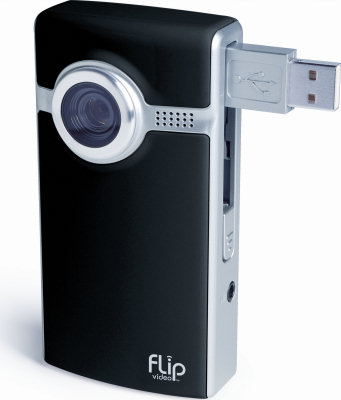
Mini-Camcorders - We have Flip Video Ultra VGA Camcorders. They record at VGA resolution (640 x 480 pixels), as compared with the 720x480 resolution you get with the standard miniDV camcorders we offer. However, These Flips are pocket-sized and can be directly plugged into the USB port of any computer for file transfer! How cool is that? Ask us for a demo.
The New Deal: The Meyer Tech Desk Checkout Policies 2008
Ever needed a camcorder for more than a day, but had to turn it in because of the one-day only checkout policy? We now offer Extended Checkouts!
Anything you checkout normally from the Tech Desk is still due back by closing time of the next business day. However, now if you want to rent it for longer, you can pay up front for an Extended Checkout. It's $10/day for each piece of equipment you need beyond the initial free day, so plan carefully! Overdues will be result in a $15 fee per day per item.
Example: Qianwen wants to checkout a Flip Video Camcorder for her ski trip to Lake Tahoe. She checks out the camcorder on Friday morning, and won't be back on campus until Monday. She gets one free day (Friday to Saturday) and then pays $20 up front for Sunday and Monday. If she did not pay for an Extended Checkout, she would be fined $15 per overdue day, resulting in $30 of fines by the time she returns the equipment.
Next week, we'll be introducing some new faces at the Meyer Tech Desk. Stay tuned!
The Tech Desk's Hottest New Toys

Projectors - We have Dell m409WX projectors for equipment checkout. They may be small and cute, but they pack a lot of punch too! Each projector comes with an AC power adapter and a VGA cable in a nifty carrying bag. These projectors also have an HDMI port and project in beautiful widescreen. Suitable for class presentations and dorm movie nights!

High-Definition Camcorders - We now stock Canon Vixia HV30 Camcorders which will record in stunning 1080i HD resolution (1920 x 1080 pixels). These are not for the faint of heart! With great quality comes great storage-eating capabilities. A project recorded in HD will take up four times as much disk space as regular DV footage, so beware. (One hour of HD footage will take about 50GB of space.) Most users only need our normal camcorders, so you must ask specifically for HD if you need it.
And finally, after Kenneth
 demonstrated this cute little device over a year ago. . .
Mini-Camcorders - We have Flip Video Ultra VGA Camcorders. They record at VGA resolution (640 x 480 pixels), as compared with the 720x480 resolution you get with the standard miniDV camcorders we offer. However, These Flips are pocket-sized and can be directly plugged into the USB port of any computer for file transfer! How cool is that? Ask us for a demo.
The New Deal: The Meyer Tech Desk Checkout Policies 2008
Ever needed a camcorder for more than a day, but had to turn it in because of the one-day only checkout policy? We now offer Extended Checkouts!
Anything you checkout normally from the Tech Desk is still due back by closing time of the next business day. However, now if you want to rent it for longer, you can pay up front for an Extended Checkout. It's $10/day for each piece of equipment you need beyond the initial free day, so plan carefully! Overdues will be result in a $15 fee per day per item.
Example: Qianwen wants to checkout a Flip Video Camcorder for her ski trip to Lake Tahoe. She checks out the camcorder on Friday morning, and won't be back on campus until Monday. She gets one free day (Friday to Saturday) and then pays $20 up front for Sunday and Monday. If she did not pay for an Extended Checkout, she would be fined $15 per overdue day, resulting in $30 of fines by the time she returns the equipment.
Next week, we'll be introducing some new faces at the Meyer Tech Desk. Stay tuned!
Friday, May 16, 2008
Why is everything crashing?!
Every so often it happens that a visibly flustered patron comes up to desk and complains that the cluster Mac she's been using is extremely slow and programs are crashing on it left, right and center. In nine out of ten cases, this is because said patron's AFS space, i.e., the meager 200 megabytes of online storage Stanford provides to students (in 2008!), is full, which usually causes Macs to go completely haywire. So, if your Mac is going haywire because your AFS is full and you want to find out how to clean it up to recover space, follow the instructions below.
The Finder Way
The Finder Way
The first step is to log on to a Mac, open a Finder window and click on your home folder in the sidebar (unless you're already there). Most Macs open Finder windows in Icon View by default and you will need to switch to Column View, either by using the keyboard shortcut Command-2 or by clicking the icon in the toolbar, in order to see where all the space is being taken up. After doing that, the Finder window should look something like this:
 Of course, the problem here is that, since everything is a folder, all the file sizes come up as "--", so we still don't know where all the space is going! This is easily remedied by selecting Show View Options from the View menu and checking the "Calculate all sizes" box. Finder should now start calculating the size for each folder one by one. The last thing to do would be to sort the list by the Size column by clicking on it, so that you can quickly locate the culprit taking up the most space, like this:
 Also, if you want to see what files within a certain folder are taking up the most space, instead of double-clicking on the folder, click on the arrow to the left of its name, which will open it up within the same view, like this:

The Terminal Way
As it turns out for a lot of tasks, there is often a faster way to do something if you use the command-line, so if you're comfortable using the Terminal on the Mac or SecureCRT on Windows, here's a command that lists all the files and folders inside the current folder with their total sizes: du -hs *
Using the du command, the output looks something like this on the same home folder you saw in examples above:

And just a quick reminder - checking AFS space on Macs is simple with Joe's App. Alternatively just open terminal and type in "fs lq."
Happy Spring Cleaning!
 Of course, the problem here is that, since everything is a folder, all the file sizes come up as "--", so we still don't know where all the space is going! This is easily remedied by selecting Show View Options from the View menu and checking the "Calculate all sizes" box. Finder should now start calculating the size for each folder one by one. The last thing to do would be to sort the list by the Size column by clicking on it, so that you can quickly locate the culprit taking up the most space, like this:
 Also, if you want to see what files within a certain folder are taking up the most space, instead of double-clicking on the folder, click on the arrow to the left of its name, which will open it up within the same view, like this:
The Terminal Way
As it turns out for a lot of tasks, there is often a faster way to do something if you use the command-line, so if you're comfortable using the Terminal on the Mac or SecureCRT on Windows, here's a command that lists all the files and folders inside the current folder with their total sizes: du -hs *
Using the du command, the output looks something like this on the same home folder you saw in examples above:

And just a quick reminder - checking AFS space on Macs is simple with Joe's App. Alternatively just open terminal and type in "fs lq."
Happy Spring Cleaning!
Tuesday, November 13, 2007
Week in Review, Nov 6 - 13
Have you ever lost an important data file? A hard drive full of them? Then pay attention to this week's blog...
Backing It Up!
A Quick Guide to Backing Up Your Own Hard Drive
Memory is getting increasingly cheap so users are left with fewer and fewer excuses not to back up their important files (if not their entire hard drives).
Macs
- If you upgrade to Leopard, simply enable Time Machine to regularly backup your files
- For earlier versions of OS X, this website provides some step by step information as well as suggesting alternate backup programs. However, if you don't want to worry about missing a few random files with backup, investing in Leopard and having a complete record of your data might be worthwhile.
PCs
- For Windows XP, this website provides a pretty good walk-through of how to back-up both manually and automatically. Automatically is often more oriented towards stationary desktops permanently attached to external drives -- but can still be used with laptops. I'd also amend that 40gb external hard drives are no longer that big (it's hard to even buy one that small). In the unfortunate even that you've lost your Windows CD, manual back-up or using another program are probably your best alternatives.
- For Windows Vista, this official website seems to follow a similar walk-through patten for using automatic back-up.
A few general notes...
- Try to keep organized files so you know that you are actually backing up all your data. ESPECIALLY if you do it manually -- you don't want to find out that the one file you actually needed was in another folder.

As for data loss stories, have any consultants lost data in an interesting way? Laptop stolen? Computer suffered water damage? Strong magnets? To start us off, I lost a good bit of data off a hard drive in high school when the family computer refused to turn on one morning. That day, my mom was on the phone with tech support and a small fire actually started in our computer.
Consultant-Client Interactions (Nov 6 – Nov 13):
Total Interactions: 513
Top Categories:
Equipment Checkouts: 219
Directions and Info: 71
Printer Issue/Refill: 46
Nov 7, 4:20pm Do you rent projectors?
Note: Since this gets asked a lot, I thought I'd elaborate a bit on our typical "nope" response. While Meyer does not provide services for renting projectors there are several places that do. RCCs have access to them through rescomp, residential staffs have access to them through their residential offices, and departments have their own as well. If all these resources fail, there is Stanford Event Services. While starting at $150 for two hours is far from cheap, it's good to keep in mind if all other alternatives fail.
Nov 13, 2:50pm Looking up Meyer Items Online
Note: If you want to see what we check out, you can simply check out our wiki, if you want to see what's in that's slightly more complicated. While you can search for availability status using Socrates, it's not something I would typically recommend. For example, searching "Camcorder" gives you Meyer's typical mini-DV camcorder as the ninth hit. Click on the entry and note that it lists 10 camcorders, one of which was due last spring. At the moment it claims 4 camcorders are on the shelves but none actually are there. Unfortunately, the only sure-fire way to figure out availability is to come in.
A Quick Guide to Backing Up Your Own Hard Drive
Memory is getting increasingly cheap so users are left with fewer and fewer excuses not to back up their important files (if not their entire hard drives).
Macs
- If you upgrade to Leopard, simply enable Time Machine to regularly backup your files
- For earlier versions of OS X, this website provides some step by step information as well as suggesting alternate backup programs. However, if you don't want to worry about missing a few random files with backup, investing in Leopard and having a complete record of your data might be worthwhile.
PCs
- For Windows XP, this website provides a pretty good walk-through of how to back-up both manually and automatically. Automatically is often more oriented towards stationary desktops permanently attached to external drives -- but can still be used with laptops. I'd also amend that 40gb external hard drives are no longer that big (it's hard to even buy one that small). In the unfortunate even that you've lost your Windows CD, manual back-up or using another program are probably your best alternatives.
- For Windows Vista, this official website seems to follow a similar walk-through patten for using automatic back-up.
A few general notes...
- Try to keep organized files so you know that you are actually backing up all your data. ESPECIALLY if you do it manually -- you don't want to find out that the one file you actually needed was in another folder.

As for data loss stories, have any consultants lost data in an interesting way? Laptop stolen? Computer suffered water damage? Strong magnets? To start us off, I lost a good bit of data off a hard drive in high school when the family computer refused to turn on one morning. That day, my mom was on the phone with tech support and a small fire actually started in our computer.
Consultant-Client Interactions (Nov 6 – Nov 13):
Total Interactions: 513
Top Categories:
Equipment Checkouts: 219
Directions and Info: 71
Printer Issue/Refill: 46
Nov 7, 4:20pm Do you rent projectors?
Note: Since this gets asked a lot, I thought I'd elaborate a bit on our typical "nope" response. While Meyer does not provide services for renting projectors there are several places that do. RCCs have access to them through rescomp, residential staffs have access to them through their residential offices, and departments have their own as well. If all these resources fail, there is Stanford Event Services. While starting at $150 for two hours is far from cheap, it's good to keep in mind if all other alternatives fail.
Nov 13, 2:50pm Looking up Meyer Items Online
Note: If you want to see what we check out, you can simply check out our wiki, if you want to see what's in that's slightly more complicated. While you can search for availability status using Socrates, it's not something I would typically recommend. For example, searching "Camcorder" gives you Meyer's typical mini-DV camcorder as the ninth hit. Click on the entry and note that it lists 10 camcorders, one of which was due last spring. At the moment it claims 4 camcorders are on the shelves but none actually are there. Unfortunately, the only sure-fire way to figure out availability is to come in.
Thursday, November 08, 2007
Super VHS
Remember back in the days of floppies? Or when you used a zip disk if you had a particularly large file? Well from the vault of technologies no longer used we bring you...
THE SUPER VHS

Introduced in 1987 by JVC, the Super VHS (or S-VHS), raised quality standards from 240 to 420 lines per picture (compared to standard TV at 500). To the untrained eye an S-VHS tape looks just like a standard VHS tape - unfortunately they don't all play in the same VCRS (as we learned this past week with a patron who had exclusively S-VHS tapes he needed to digitize). To tell the difference you actually need to flip the tapes over.

The main difference can be boiled down to one hole on the bottom of the tape. Consumers soon realized that a standard VHS tape could be used in a S-VCR if simply modified by drilling a hole -- by some reports this practice even increases tape quality. Instances of altering S-VCRs to make this hole unnecessary also occurred. Many models of S-VCRs now support playing standard tapes.
The format has mostly fallen out of favor (and never caught on as some had hoped) but, as with formats like floppies, we're left with the vestiges of s-VHS in that people still need to access data stored on them.
WHAT YOU NEED TO KNOW
* If a VHS tape won't play for any apparent reason, check to see if it is an S-VHS.
* If it is, encourage the patron to use the black JVC decks. These are the only decks on the floor that will play S-VHS.
Fun Fact:
S-VCRs were one of the first pieces of hardware to use S-Video cables leading many to believe the "S"s stood for the same thing. In fact, the S in S-VHS stands for "Super" while the S in S-Video stands for "separated."
THE SUPER VHS
Introduced in 1987 by JVC, the Super VHS (or S-VHS), raised quality standards from 240 to 420 lines per picture (compared to standard TV at 500). To the untrained eye an S-VHS tape looks just like a standard VHS tape - unfortunately they don't all play in the same VCRS (as we learned this past week with a patron who had exclusively S-VHS tapes he needed to digitize). To tell the difference you actually need to flip the tapes over.
The main difference can be boiled down to one hole on the bottom of the tape. Consumers soon realized that a standard VHS tape could be used in a S-VCR if simply modified by drilling a hole -- by some reports this practice even increases tape quality. Instances of altering S-VCRs to make this hole unnecessary also occurred. Many models of S-VCRs now support playing standard tapes.
The format has mostly fallen out of favor (and never caught on as some had hoped) but, as with formats like floppies, we're left with the vestiges of s-VHS in that people still need to access data stored on them.
WHAT YOU NEED TO KNOW
* If a VHS tape won't play for any apparent reason, check to see if it is an S-VHS.
* If it is, encourage the patron to use the black JVC decks. These are the only decks on the floor that will play S-VHS.
Fun Fact:
S-VCRs were one of the first pieces of hardware to use S-Video cables leading many to believe the "S"s stood for the same thing. In fact, the S in S-VHS stands for "Super" while the S in S-Video stands for "separated."
Friday, October 19, 2007
SULAIR Open House: Afterglow
Thanks for everybody who came by the SULAIR Open House on Wednesday! Our Team Leaders and consultant Vincent came out to tell one and tell all about the fantastic services we provide through the Meyer Tech Desk and Multimedia Studio. To say the least, we were startled by the number of people who came by the booth. Check out our display! (And look out for our volunteer's cool new t-shirts, at a Tech Desk near you!)

We got a chance to talk about what I call the Big 3: Tech Desk Consulting, Equipment Checkout, and Full-Service Poster Printing. In addition to that, we had demo of a miniDV camcorder importing a live video feed into a Macbook via iMovie. It's the best of both worlds -- on-the-fly import as well as a tape backup! We also had a Wii set up -- I think we got about as many questions about the Wii as we did about Multimedia Studio Tours! Even Rich got in on the Wii Bowling action.
 For giveaways, we treated our guests with Apple Remotes! (No, they are not the old iPod Shuffle!) Many people were pleasantly surprised when they learned what it was for. These handy little helpers are great for activating Front Row on your Intel Mac, as well as for shuffling through songs on our docked iPod. Did you pick up an Apple Remote?

Our Stucomp friends Surajit and Ethan also stationed the official Stucomp and Rescomp tables. Here you can see that they are definitely deep in thought.

Did you see our banners? "I was already feeling pretty stressed with the last-minute preparations for this once-in-a-lifetime event, so when I realized we didn't have a cool banner, I nearly went bonkers. Instead, I opted to express myself through a gritty depiction of the Meyer Tech Desk and Multimedia Studio," Kenneth explained to himself as he wrote this post. And what do you know? They are here just in time for Halloween.


Thank you to all of the participants who took our 5-minute survey. We may release some of the hard data once we've had a chance to process it, but in the meantime, check out some of the comments and suggestions about our services and facilities:
+ I have only been here for a month. Haven't really gotten a chance to utilize the plethora of resources at Meyer.
+ I feel I get to more about the lib. through this survey:).
+ Great demo/sample table at the open house; kudos!
+ there the very best in the world!!!!
Finally, what everybody's been waiting for: The Raffle Results! We will be sending an email out to the following people who have won a prize from the Meyer Raffle (in no particular order): Carlee B, Caleb C, George S, Hai W, Julie N, Judith P, Kevin S, Matthew S, Nuriya J, and Shelley F. Congratulations! Our Prize Bin includes Apple iLife 08, Apple iWork 08, $50 poster print coupons, a Stanford wrist watch, and USB memory drives, among other prizes! Please come to the Meyer Tech Desk to pick up your prize. Supplies are limited, so the sooner you get here, the better the prize selection!


We got a chance to talk about what I call the Big 3: Tech Desk Consulting, Equipment Checkout, and Full-Service Poster Printing. In addition to that, we had demo of a miniDV camcorder importing a live video feed into a Macbook via iMovie. It's the best of both worlds -- on-the-fly import as well as a tape backup! We also had a Wii set up -- I think we got about as many questions about the Wii as we did about Multimedia Studio Tours! Even Rich got in on the Wii Bowling action.
 For giveaways, we treated our guests with Apple Remotes! (No, they are not the old iPod Shuffle!) Many people were pleasantly surprised when they learned what it was for. These handy little helpers are great for activating Front Row on your Intel Mac, as well as for shuffling through songs on our docked iPod. Did you pick up an Apple Remote?
Our Stucomp friends Surajit and Ethan also stationed the official Stucomp and Rescomp tables. Here you can see that they are definitely deep in thought.

Did you see our banners? "I was already feeling pretty stressed with the last-minute preparations for this once-in-a-lifetime event, so when I realized we didn't have a cool banner, I nearly went bonkers. Instead, I opted to express myself through a gritty depiction of the Meyer Tech Desk and Multimedia Studio," Kenneth explained to himself as he wrote this post. And what do you know? They are here just in time for Halloween.


Thank you to all of the participants who took our 5-minute survey. We may release some of the hard data once we've had a chance to process it, but in the meantime, check out some of the comments and suggestions about our services and facilities:
+ I have only been here for a month. Haven't really gotten a chance to utilize the plethora of resources at Meyer.
+ I feel I get to more about the lib. through this survey:).
+ Great demo/sample table at the open house; kudos!
+ there the very best in the world!!!!
Finally, what everybody's been waiting for: The Raffle Results! We will be sending an email out to the following people who have won a prize from the Meyer Raffle (in no particular order): Carlee B, Caleb C, George S, Hai W, Julie N, Judith P, Kevin S, Matthew S, Nuriya J, and Shelley F. Congratulations! Our Prize Bin includes Apple iLife 08, Apple iWork 08, $50 poster print coupons, a Stanford wrist watch, and USB memory drives, among other prizes! Please come to the Meyer Tech Desk to pick up your prize. Supplies are limited, so the sooner you get here, the better the prize selection!

Thursday, June 07, 2007
Audacity: Quick Answers
And now, a little break from the fascinating world of file transfers...
In today's post, we're going to cover some frequently answered questions about a popular audio editing application called Audacity.
 Okay, the reality is that we don't get too many questions in general about Audacity because it is so easy to use. But if someone (like me) was forced to come up with some questions about the application, these would be what I'd ask:
Q. Where can I find Audacity?
A. Audacity is installed on all of the computers in Meyer, Tresidder, and the residential clusters. It is also available for free download and use on your own computer from http://audacity.sourceforge.net/
Q. How can I learn to use Audacity?
A. The best way to learn it is probably the hands-on approach. If you want to work on a sample project, try going to our Audacity wiki page and download the source files under the Workshop section to your computer. Then open up the downloaded file, import the vocal, music, and sound effect files into a new Audacity project!
Q. Where should I save my project?
A. Audacity projects get really big really fast, so make sure you're saving to the User Space or Temporary Storage if you're using a cluster computer. If you accidentally save things to the Documents folder or your Home folder, it will fill up your AFS space really fast and you will start getting weird errors.
Q. How do I add tracks to the project?
A. Open Audactiy and select Project --> Import Audio. All audio file imports are given their own new track.
Q. What can I do with the selection tool?
A. Click and drag in a track to make a selection. Then, you can duplicate that part to another track. Or select part of a track and apply an Effect. You can even select and move multiple tracks at once.
Q. What is the envelope tool?
A. You can make an envelope around a track to control the volume of the track. It enables you to create a smooth fade in and fade out and muting effects in your audio.
Q. How do I use the draw tool?
A. Uhh... This is an advanced tool that's frankly difficult to explain in words. You'll have to figure it out by experimenting. =]
Q. How do I use the zoom tool?
A. Zoom in and zoom out (with the shift key) of your project tracks to see more or less audio detail.
Q. How do I use the time shift tool?
A. This is the basic "move" tool in Audacity. For example, when you import a sound effect file, you can shift the sound effect horizontally in time to make it "fit" with something in a music/spoken track.
Q. How do I use the multitool?
A. You get to figure this one out. It can supposedly replicate all of the other tools' functions with the right keyboard combinations.
Q. How do I only listen to one track out of many tracks?
A. Click the Solo button on the left panel of the track(s).
Q. How do I temporarily mute one track out of many tracks?
A. Click the Mute button on the left panel of the track(s).
Q. When should I export to MP3 instead of the Audacity project format?
A. Remember that exporting to WAV or MP3 will "flatten" all of your project's audio tracks (to use a term from Photoshop), and it will also compress your audio, which degrades the quality each time you do it, so exporting as MP3 should be one of the very last steps in the production of an audio project.
Q. How do I export to MP3?
A. You must make sure you've downloaded the LameLib file linked from http://audacity.sourceforge.net and that it is selected under Audacity --> Preferences --> File Formats --> MP3 Export Setup. Then go to File --> Export as MP3.
Q. Wher can I get more help on Audacity?
A. A pretty good overview is located at
http://www.transom.org/tools/editing_mixing/200404.audacity.html
The official Audacity wiki is good too:
http://audacityteam.org/wiki
And if there continue to be things you don't know, please write to consultants@lists.stanford.edu so that the MMS consultants know what issues aren't covered by this tutorial.
See you next time!
In today's post, we're going to cover some frequently answered questions about a popular audio editing application called Audacity.
 Okay, the reality is that we don't get too many questions in general about Audacity because it is so easy to use. But if someone (like me) was forced to come up with some questions about the application, these would be what I'd ask:
Q. Where can I find Audacity?
A. Audacity is installed on all of the computers in Meyer, Tresidder, and the residential clusters. It is also available for free download and use on your own computer from http://audacity.sourceforge.net/
Q. How can I learn to use Audacity?
A. The best way to learn it is probably the hands-on approach. If you want to work on a sample project, try going to our Audacity wiki page and download the source files under the Workshop section to your computer. Then open up the downloaded file, import the vocal, music, and sound effect files into a new Audacity project!
Q. Where should I save my project?
A. Audacity projects get really big really fast, so make sure you're saving to the User Space or Temporary Storage if you're using a cluster computer. If you accidentally save things to the Documents folder or your Home folder, it will fill up your AFS space really fast and you will start getting weird errors.
Q. How do I add tracks to the project?
A. Open Audactiy and select Project --> Import Audio. All audio file imports are given their own new track.
Q. What can I do with the selection tool?

A. Click and drag in a track to make a selection. Then, you can duplicate that part to another track. Or select part of a track and apply an Effect. You can even select and move multiple tracks at once.
Q. What is the envelope tool?

A. You can make an envelope around a track to control the volume of the track. It enables you to create a smooth fade in and fade out and muting effects in your audio.
Q. How do I use the draw tool?

A. Uhh... This is an advanced tool that's frankly difficult to explain in words. You'll have to figure it out by experimenting. =]
Q. How do I use the zoom tool?

A. Zoom in and zoom out (with the shift key) of your project tracks to see more or less audio detail.
Q. How do I use the time shift tool?

A. This is the basic "move" tool in Audacity. For example, when you import a sound effect file, you can shift the sound effect horizontally in time to make it "fit" with something in a music/spoken track.
Q. How do I use the multitool?

A. You get to figure this one out. It can supposedly replicate all of the other tools' functions with the right keyboard combinations.
Q. How do I only listen to one track out of many tracks?
A. Click the Solo button on the left panel of the track(s).
Q. How do I temporarily mute one track out of many tracks?
A. Click the Mute button on the left panel of the track(s).
Q. When should I export to MP3 instead of the Audacity project format?
A. Remember that exporting to WAV or MP3 will "flatten" all of your project's audio tracks (to use a term from Photoshop), and it will also compress your audio, which degrades the quality each time you do it, so exporting as MP3 should be one of the very last steps in the production of an audio project.
Q. How do I export to MP3?
A. You must make sure you've downloaded the LameLib file linked from http://audacity.sourceforge.net and that it is selected under Audacity --> Preferences --> File Formats --> MP3 Export Setup. Then go to File --> Export as MP3.
Q. Wher can I get more help on Audacity?
A. A pretty good overview is located at
http://www.transom.org/tools/editing_mixing/200404.audacity.html
The official Audacity wiki is good too:
http://audacityteam.org/wiki
And if there continue to be things you don't know, please write to consultants@lists.stanford.edu so that the MMS consultants know what issues aren't covered by this tutorial.
See you next time!
Tuesday, June 05, 2007
Tips and Tricks for Transferring PART III: Using Target Disk Mode on Macs
 Overview:
Using target disk mode is quick and easy way to transfer files of any size between two Macs. This handy trick can save you lots of time when transferring large files. In this example, we assume that you want to transfer a file from a Mac in the Multimedia Studio onto your Mac. Essentially, you'll be turning one Mac into an external FireWire hard drive.
Materials Required:
6-pin to 6-pin FireWire cable (available at the desk if you don't have one).
Step 1: Prepare the Connection
- Shutdown your Mac (the computer you want to turn into the external FireWire hard drive).
- Plug the FireWire cable into both computers.

Step 2: Boot Your Machine into Target Disk Mode
- Hold down the "T" key and turn your Mac back on. Continue holding the "T" key until the FireWire logo (right) appears on the screen.
Step 3: Transfer Files
- You should now see your computer show up as an external FireWire drive on the desktop of the cluster Mac.
- Transfer the files you need to transfer using Finder.
Step 4: Disconnect
- Eject your Mac by dragging the FireWire hard drive to the trash.
- Turn off your Mac by pressing the power button. Unplug the cable.
Congratulations! You're done!
Tuesday, May 22, 2007
Tips and Tricks for Transferring Files PART II: Transfer Files between Macs Using iChat
Overview
Find the two Macs you need to transfer files between and log in to them.
Step 2
Once logged in, do the following on both computers:

Step 2½
We want to make sure that when iChat receives the file, it doesn't try to store it in your AFS home folder because it's probably too small to accommodate the large files that you're using this method for. So, on the receiving Mac, do the following:

Step 3
Now we are ready to transfer the file. This procedure is straightforward.
A word to the wise: once you are done transferring your file, do log out of one of the machines. Having multiple machines logged in to your account doesn't have any immediately detrimental consequences. However, situations can arise (the two computers try to use the same file at the same time) which might cause one or both of the computers to hang or some files to get corrupted.
- Login to the two Macs
- Start iChat and enable Bonjour
- Drag file onto name in Buddy List
Find the two Macs you need to transfer files between and log in to them.
Step 2
Once logged in, do the following on both computers:
- Choose Applications from the Finder's Go menu and double-click on iChat in the window that comes up.
- If you have never used iChat before, you will see a Welcome to iChat AV window. Keep clicking Continue until you reach the Set up Bonjour Messaging window. Here, check the Use Bonjour Messaging box and keep clicking Continue again until the button changes to Done; then click Done.
- If you have used iChat before and a Buddy List or other window shows up when you launch it, but you don't see a Bonjour window, choose Bonjour from the Window menu and click on the Enable button if it asks you to enable it.

Step 2½
We want to make sure that when iChat receives the file, it doesn't try to store it in your AFS home folder because it's probably too small to accommodate the large files that you're using this method for. So, on the receiving Mac, do the following:
- Choose Preferences from the iChat menu.
- Click on the General tab.
- If, next to Save received files to, you don't see Temporary Storage, click on that menu, choose Other, choose Temporary Storage in the resulting window and click Select.

Step 3
Now we are ready to transfer the file. This procedure is straightforward.
- Find the file that you wish to transfer on one of the computers and drag it on to your own name in the Bonjour window in iChat; iChat will ask for a confirmation; click Send
- You should see a window like this:

- This is a cue for you to go to the other Mac and find this window waiting for you:

- Click inside the window, click Save File.
- The file should begin transferring and you should see the transfer progress.


A word to the wise: once you are done transferring your file, do log out of one of the machines. Having multiple machines logged in to your account doesn't have any immediately detrimental consequences. However, situations can arise (the two computers try to use the same file at the same time) which might cause one or both of the computers to hang or some files to get corrupted.
Subscribe to:
Posts (Atom)